Checkout our NEW Streaming Programs!
Click here to find which program is right for you
Title: How to: Use pre-recorded content with live streams. (Expression Encoder)
Solution Number: 00000580 Type: Technical
Solution Details:

How to use pre-recorded content stored on your hard drive during live broadcasts using Microsoft Expression Encoder.


Using pre-recorded content for your live broadcasts is a simply procedure, all that is required is a Live Windows Media streaming service which you can add to your account here and Microsoft Expression Encoder which can be downloaded from here.


Step 1 - Open Microsoft Expression Encoder and select a "Live Broadcasting Project"


Step 2 - Add your pre-recorded files.
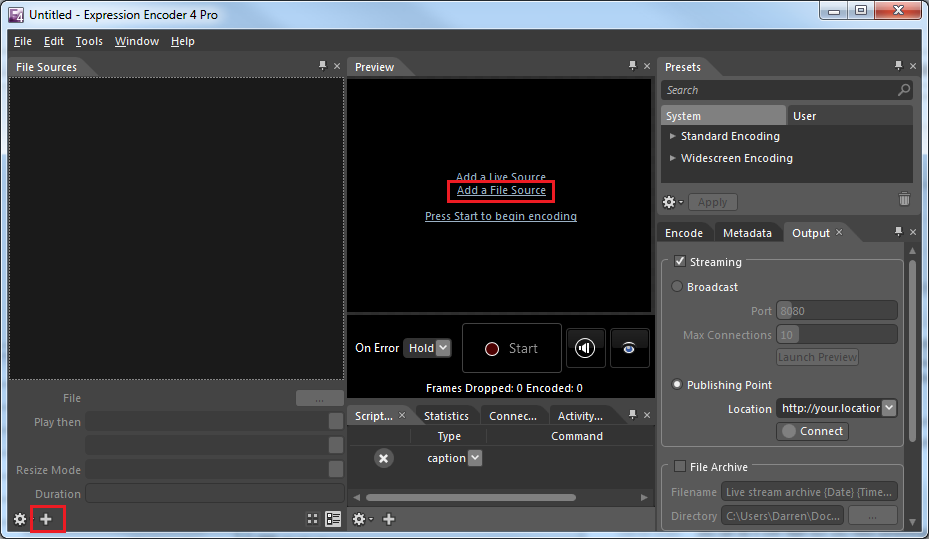


Step 3 - Add additional sources (Optional)
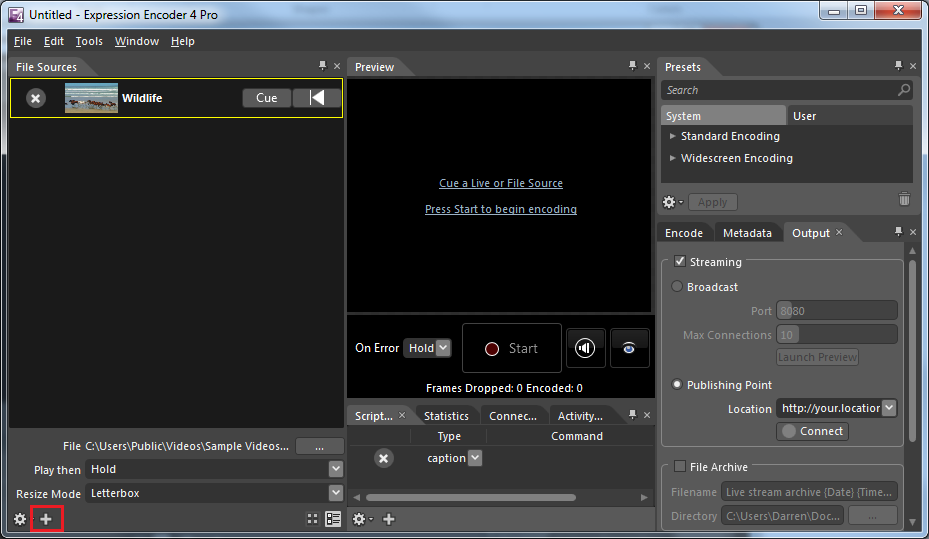

Click the plus highlighted in red to add additional pre-recorded videos.


Step 4 - Set your output to "Streaming" and enter your "Publishing point location", be sure to "Cue" your desired video and press "Start"
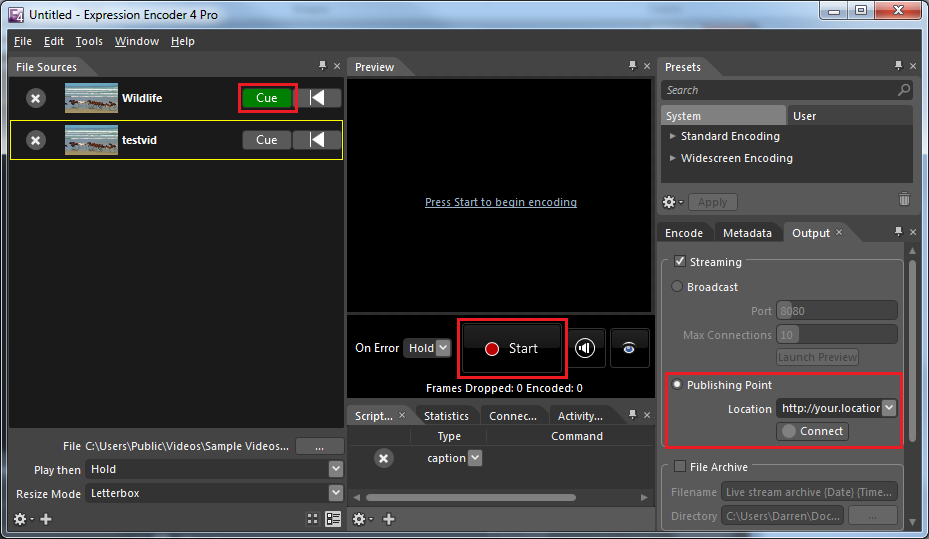

Queue your desired video and press start.


For further information on configuring Microsoft Expression Encoder see the following FAQ:

How to: Configure Microsoft Expression Encoder

On a scale of 1 to 10 how useful was this document?

 Related Files

 Previous  (1 - 4 of 4)  Next 
 Files Last Modified 
cueandstart01/21/2011 3:48:36 AM
addmoresources01/21/2011 3:29:20 AM
selectlive01/21/2011 3:27:14 AM
addsource101/21/2011 3:28:33 AM

 Comments

CommentCreated DateCreated by
No records to display.

Instant Support: Chat | Email | Phone

Register now and start streaming instantly
Home | Services | Support | Billing | Account | FAQ - Frequently Asked Questions | Streaming Media Services | Terms & Conditions | Privacy Policy
Copyright © 1999 - 2026 NetroMedia.com All rights reserved | Your current IP address is: 216.73.216.180